An option select is similar to a dropdown, but functions as a form field rather than a button. It allows users to choose an option from a list, with the selected value included in the form submission. A common example is selecting a country in a web form.
Editing an Option Select
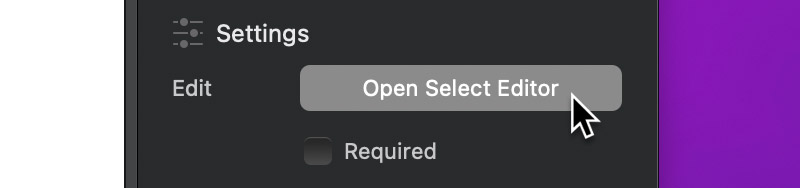
First select the option select on the design canvas. Then, in the Inspector, click the Open Select Editor button to open the Select Editor window.
Add and Remove Select Items
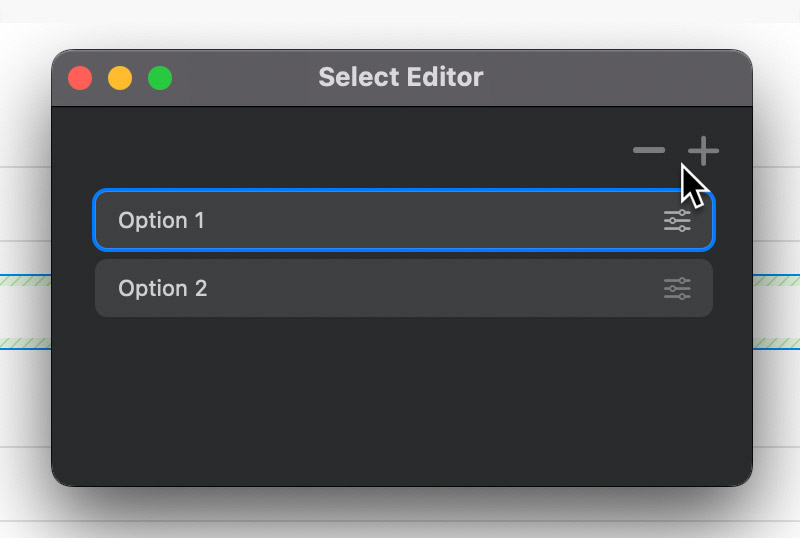
Adding and removing items in the Select Editor is simple, use the + button (top right) to add a new item, and the – button to remove the currently selected item.
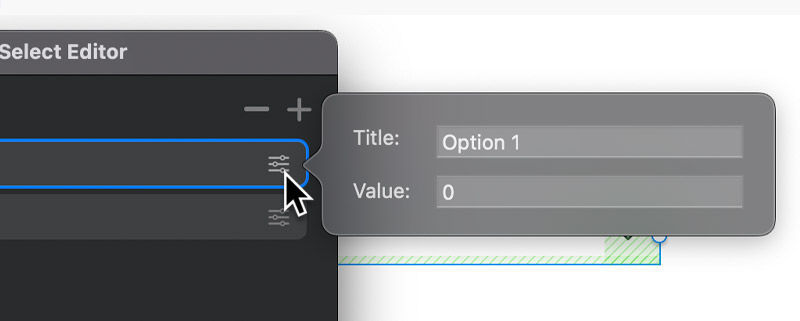
Edit Select Item
To edit an item, click the settings icon on the right side of its entry in the list. This opens a popover where you can edit its two attributes: Title (the text shown in the list) and Value (the data submitted with the form).