
A File Select input field makes it possible for visitors to attach files to contact forms on your website. This is useful when you need users to send supporting materials such as images, PDFs, or other media along with their enquiry.
Requirements
If your contact form includes a File Select input field, the form must be configured to send messages using SMTP. File attachments are not supported when using the basic PHP mail() sending method.
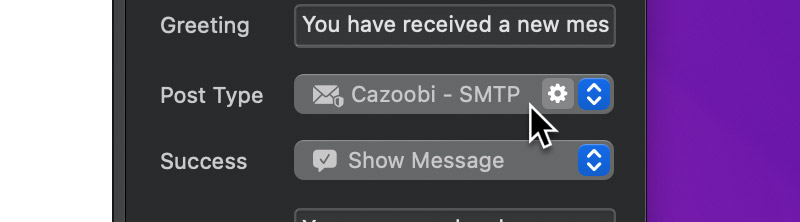
SMTP provides a more reliable and secure way to send emails, especially when attachments are involved. You can read more about how to configure and use SMTP form posting in Blocs here.
Supported Files
File Select input fields support a range of common file formats across images, audio, video, and documents. This ensures visitors can easily attach relevant files when submitting a form.
Blocs gives you full control over file uploads, you can limit uploads to a specific file type group, such as images or allow visitors to upload any supported file format.
Images
- JPG – Widely supported compressed image format.
- PNG – High-quality images with transparency support.
- GIF – Simple images and basic animations.
- WEBP – Modern web-optimised image format.
- HEIC – High-efficiency images commonly used on Apple devices.
- EIF – Apple high-efficiency image variant.
Audio
- MP3 – Standard compressed audio format.
- WAV – High-quality uncompressed audio.
- M4A – Apple audio format often used on mobile devices.
Video
- MP4 – Most widely supported video format.
- MOV – Apple QuickTime video format.
- WEBM – Web-optimised video format.
Documents
- PDF – Portable document format.
Archives
- ZIP – Compressed archive containing multiple files.
Maximum Attachment Size
Blocs allows you to define the maximum file size for individual attachments as well as the total combined size of all files uploaded through a form. This gives you control over upload performance, email reliability, and server usage.
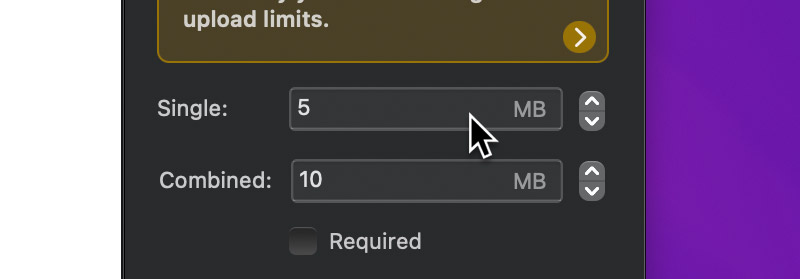
However, it’s important to understand that these limits can still be restricted by your web hosting PHP configuration. If PHP limits are set lower than the values configured in Blocs, file uploads may fail or forms may not submit correctly.
Common PHP Settings That Affect File Uploads
If visitors are unable to upload larger files, you may need to increase the following PHP settings on your web hosting:
- upload_max_filesize – Maximum allowed size for a single uploaded file.
- post_max_size – Maximum total size of form data.
- max_file_uploads – Maximum number of files that can be uploaded at once.
- max_execution_time – Time limit for script execution (large uploads may require more time).
- memory_limit – Available memory for processing uploads.
How to Increase PHP Upload Limits
Depending on your hosting setup, you can usually update these values in one of the following ways:
- Edit the php.ini file on your web hosting.
- Add rules to a .htaccess file on your web hosting.
- Update settings via your hosting control panel (e.g. cPanel / Plesk).
- Contact your hosting provider’s support team.
Troubleshooting Tips
If file uploads are failing:
- Ensure PHP limits are higher than the limits set in Blocs.
- Test with smaller files to confirm the issue is size-related.
- Check your server error logs for upload or timeout errors.
- Verify your hosting provider’s attachment size limits.
- Check your browser’s developer console when an error occurs to view any Blocs-related error messages.