
When an update is available, a small update button will appear on the Blocs start screen, accompanied by the Blocs update chime. 🎶
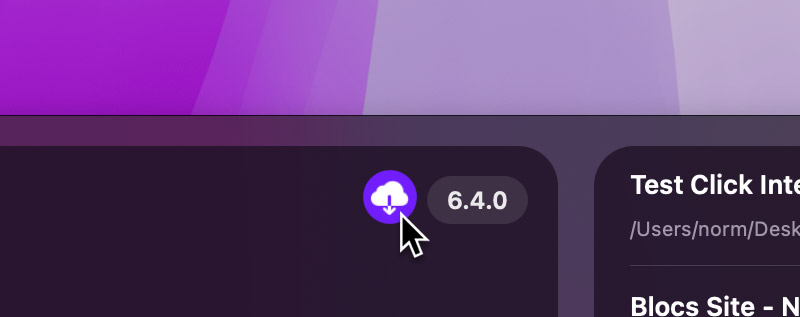
Clicking this button will guide you through the update process.
If you don’t see the update button but know a new version is available, try checking for updates manually.
Manually Check For Updates
To manually check for updates, go to Blocs > Check for Updates in the main menu. This will immediately trigger a check for any available updates.
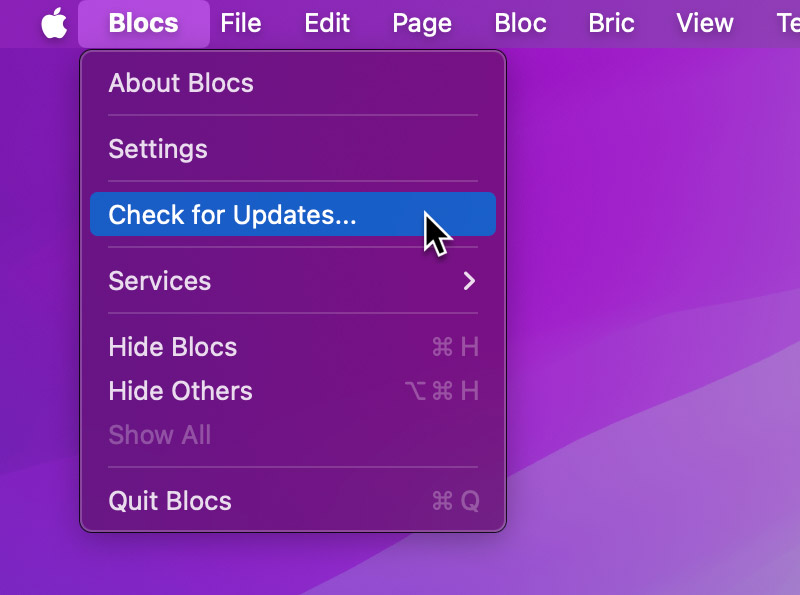
Update Option is Greyed Out
If the Check for Updates option is greyed out, automatic updates are currently enabled. You can disable this in Blocs Settings, accessible from the main menu via Blocs > Settings.
Update Failed
If an update fails to download due to a connection issue or another unexpected problem, you can manually download the latest version of Blocs here.
Older Versions of Blocs
If you are looking for older versions of Blocs you can find them all here.