The Class Editor is a powerful visual tool for creating and editing custom CSS classes. With over 140 styling properties, support for search, multiple states, responsive breakpoints and live previews, it gives you complete control over the appearance of your website elements.
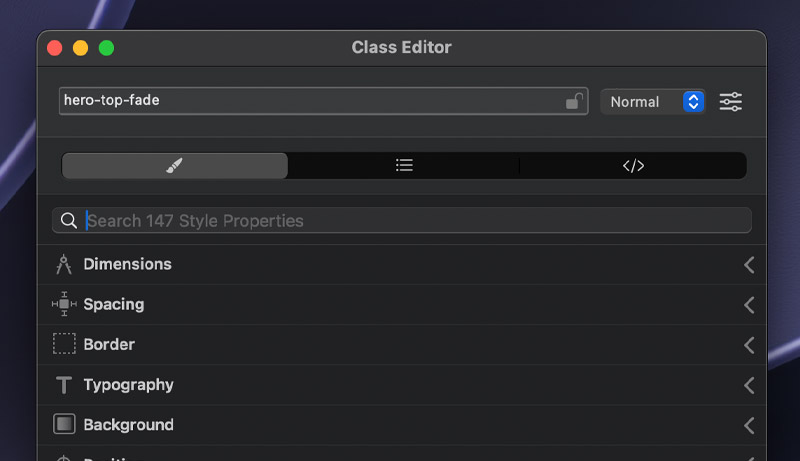
Open The Class Editor
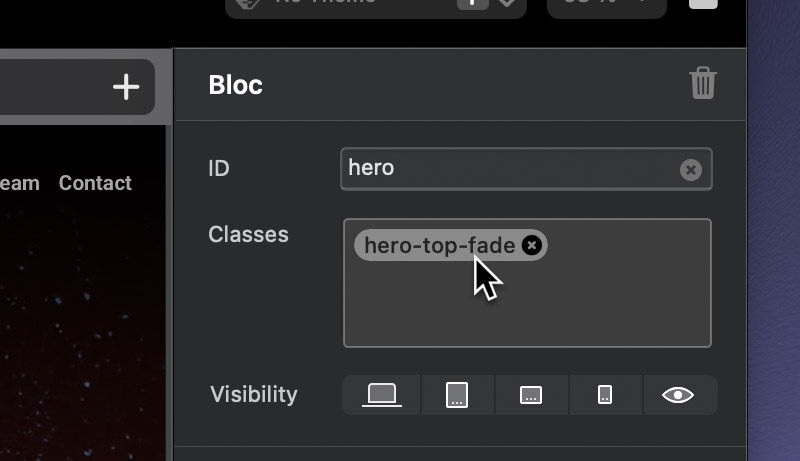
You can open the Class Editor by clicking a class token in the Inspector’s Class field or by clicking the settings button in the Class Manager.
Name Field
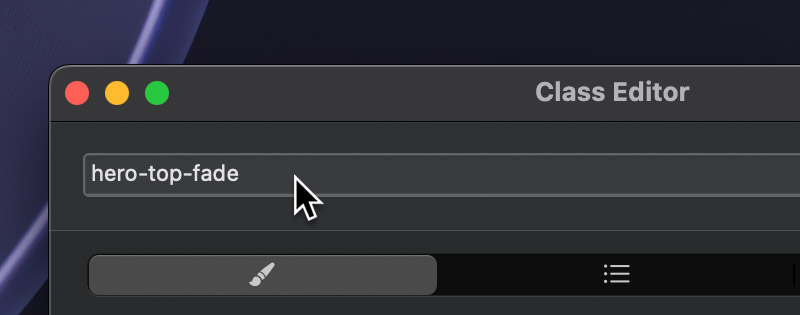
The Class Name field displays the name of the currently selected class. You don’t need to include the leading dot (.), as Blocs handles this automatically.
Update Class Name
To rename a class, simply edit its name in the Class Name field and press Return to apply the change.
Lock a Class
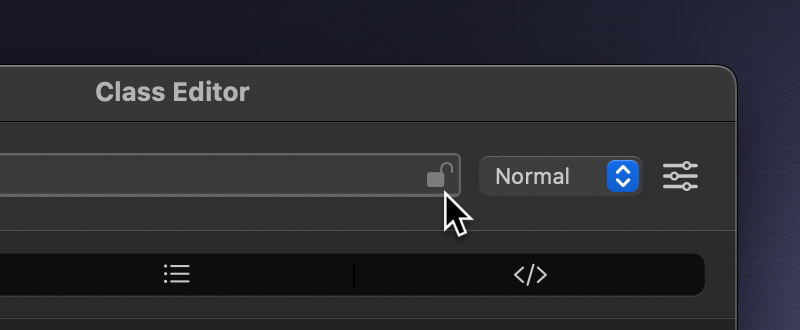
A small lock button is located to the right of the Class Name field. Click it to lock the class and prevent further editing.
State Selector
The Class Editor supports a range of predefined states. When a state is selected, all property changes are applied specifically to that state. States can also be previewed directly on the design canvas, allowing you to see their appearance without interacting with the element.
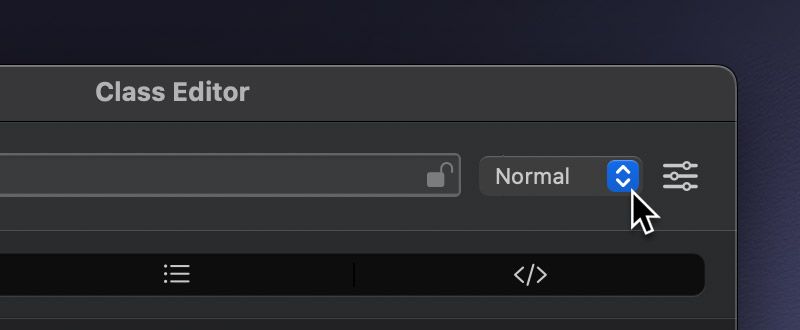
The Class Editor supports the following States:
- Normal – Default element appearance.
- Hover – When the pointer is over an element.
- Active – While an element is being activated.
- Focus – When an element receives focus.
- Focus Visible – When focus should be visually indicated.
- Focus Within – When an element or its child has focus.
- Visited – Links that have been visited.
- Disabled – When an element is disabled.
- Checked – When a checkbox or radio button is selected.
- Placeholder – Placeholder text in input fields.
Additional Options
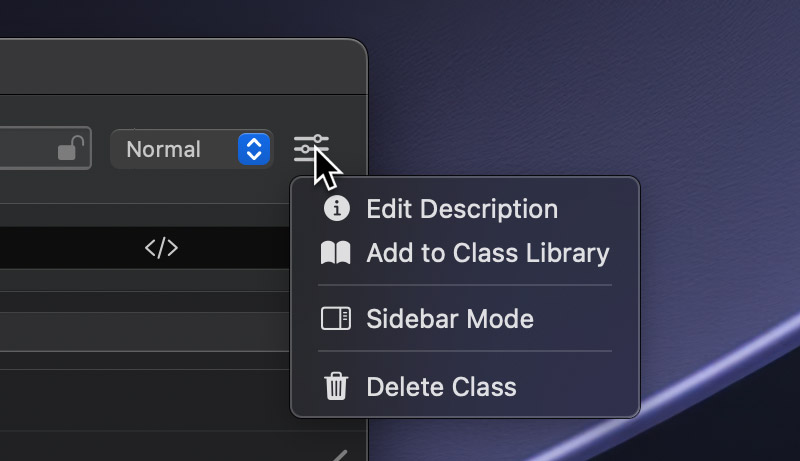
The settings dropdown in the top-right corner of the Class Editor provides access to additional features and options.
Edit Description
You can add a description to a class to explain its purpose. Use the Edit Class Description option to add or update this information.
Add Class to Library
Save classes to the Class Library for reuse in other Blocs projects. Use this option to add the selected class to your library.
Sidebar / Window Mode
The Class Editor can be used as a standalone window or docked within the Inspector sidebar. Use this option to switch between the two modes.
Delete Class
Use this option to delete the currently selected class. Deleting a class automatically removes it from all elements where it is applied. This action cannot be undone.
Property View
By default, the Class Editor displays all available CSS properties, organised into categories such as Dimensions, Spacing, Borders and Typography. With over 140 CSS properties to choose from, the Class Editor provides extensive control over the appearance and styling of your elements.
Order View
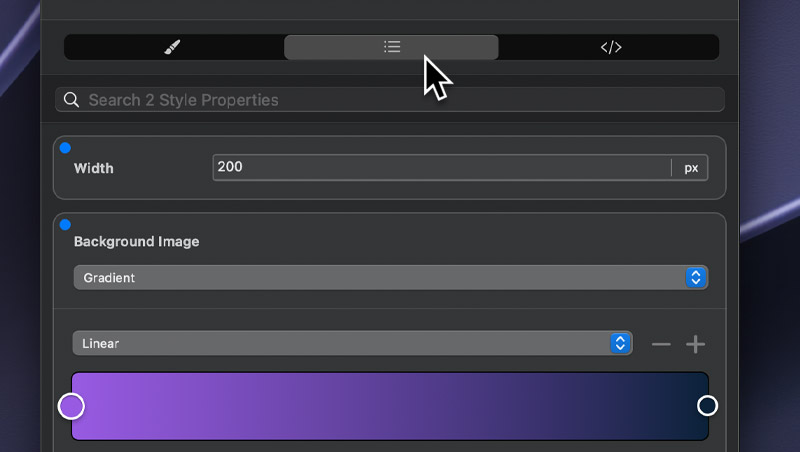
Order view lets you rearrange class properties using drag and drop. It also filters the list to show only properties that have values applied.
Code View Requires Blocs Pro
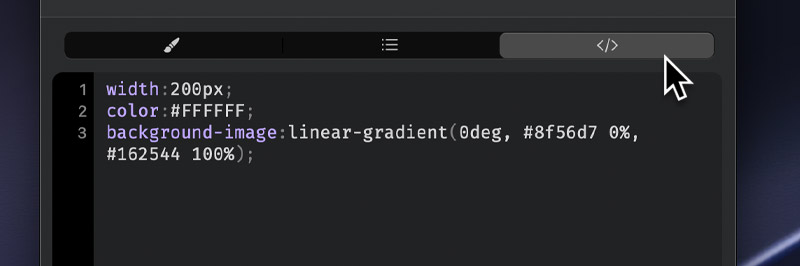
The Class Editor also includes a Code View. With Blocs Pro, you can edit class properties directly in CSS and add custom properties that are not yet available through the standard Class Editor controls.
Property Search
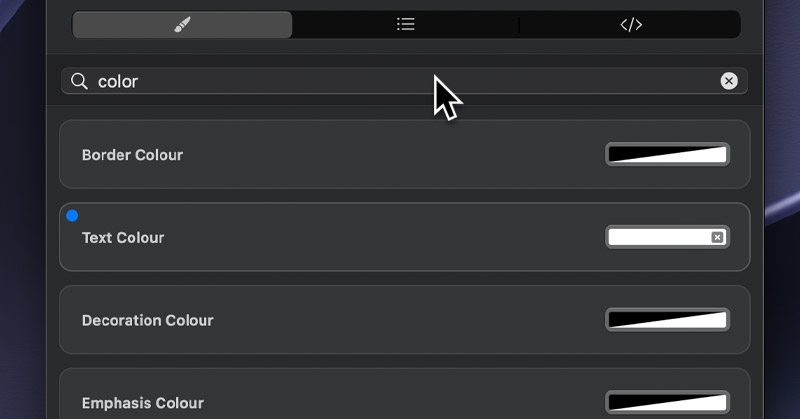
Property Search lets you quickly filter properties to find the settings you need. Search is available in both the full property view and Order view.
Add !important Suffix
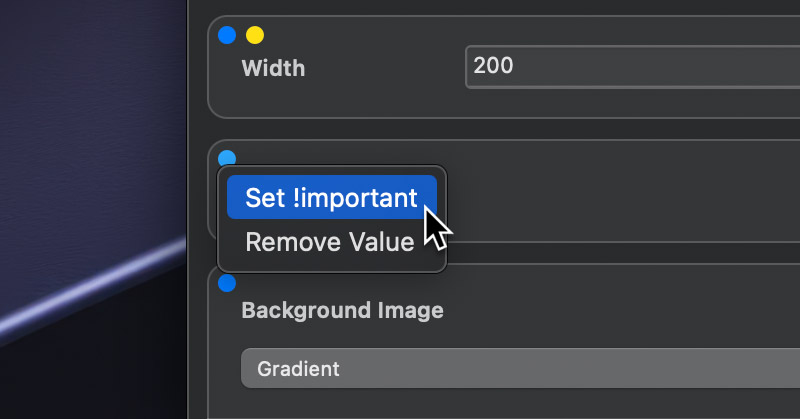
When a property has a value assigned, a small dot appears in the top-left corner of its settings panel. Click this dot to toggle the CSS !important suffix on or off. When enabled, an additional yellow dot appears, making it easy to identify properties marked as important.
Revert Changes
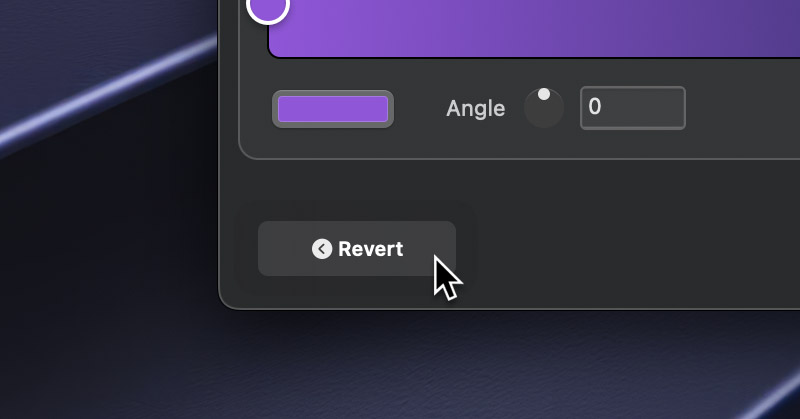
When you edit a class state, a Revert button appears in the bottom-left corner of the Class Editor. This allows you to quickly restore the original property values, making it easy to experiment with different settings.