
Themes make it quick and easy to apply a consistent base layer of styling across an entire website with just a few clicks. Alternatively, themes can be applied to individual Blocs, allowing you to effortlessly mix and match different styles throughout your website.
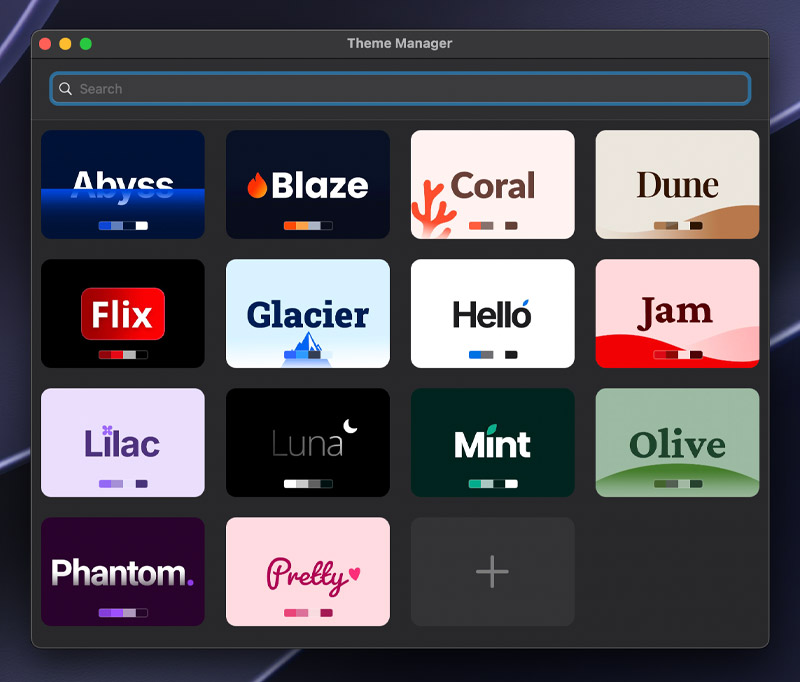
Blocs includes 14 built-in core themes to choose from. You can also install additional third-party themes or create your own using the Theme Manager included with Blocs Plus.
How Themes Work
Themes provide a base layer of styling, meaning any styles applied through Project Settings, custom classes or the Inspector will always take priority over those defined by a theme.
As a result, applying a theme to an existing website may not affect elements that already have custom styling. This behaviour is intentional and ensures your existing styling is preserved.
Using Themes
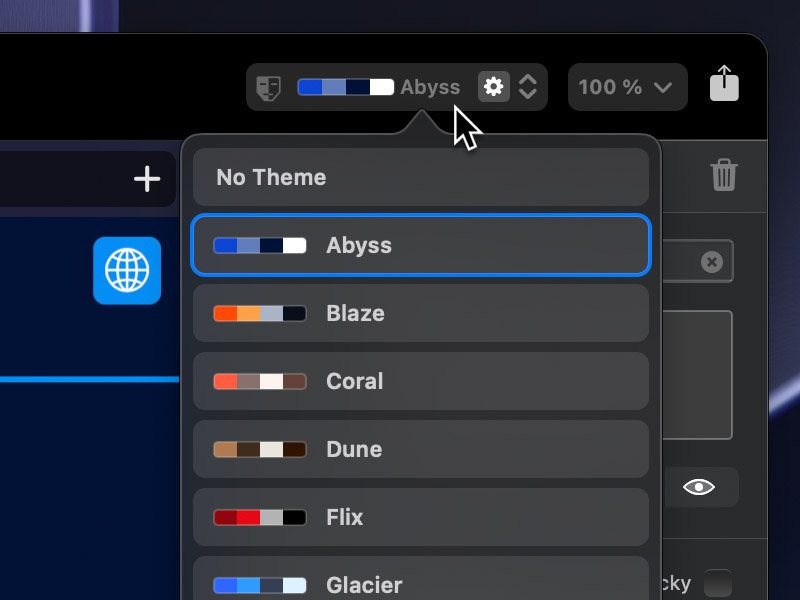
To apply a theme to your entire website, use the Theme Selection menu located in the top-right corner of the main application window. Once open you can also use the arrow keys to navigate through the available themes.
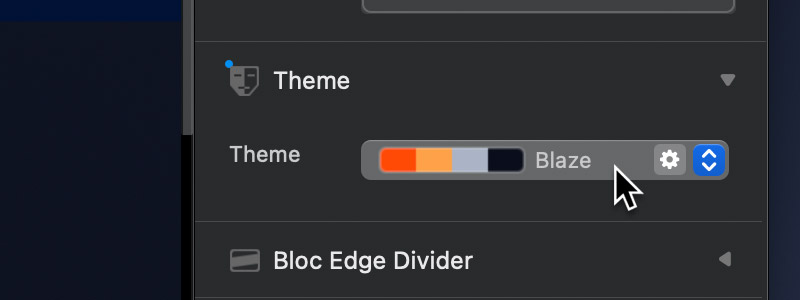
To apply a theme to an individual Bloc, select the Bloc on the design canvas and choose a theme using the Theme option in the Inspector.
Theme Manager
To open the Theme Manager, click the + button in the Theme Selection dropdown or select Window > Theme Manager from the main menu.
Creating a Custom Theme
You can also create your own custom themes using Blocs Plus. The Theme Manager allows you to design and customise themes to suit your preferred style, making it easy to create a consistent look and feel that can be reused across multiple projects.
Installing a Theme
You can install additional Blocs themes using the Extension Manager.