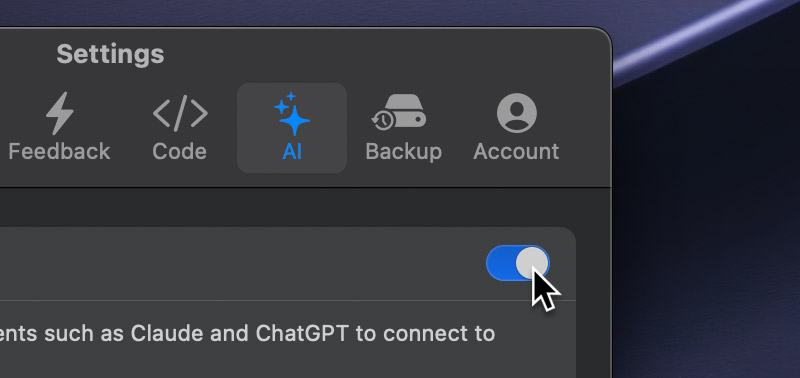
The built-in Blocs MCP (Model Context Protocol) server allows AI apps such as Claude, ChatGPT, Bionic and Cursor to connect directly to Blocs, enabling them to launch the app, understand your projects, interact with the editor and perform tasks on your behalf.
What is MCP
An MCP (Model Context Protocol) server acts as a communication bridge between Blocs and your AI app. The Blocs MCP server provides a range of tools that allow the AI app to interact with Blocs, control its features and perform tasks on your behalf.
Setup MCP
During initial setup, Blocs will automatically detect compatible AI apps installed on your Mac and prompt you to select which one you’d like to use as your Blocs assistant. You can change your preferred AI app at any time from the AI tab in the main Blocs Settings.
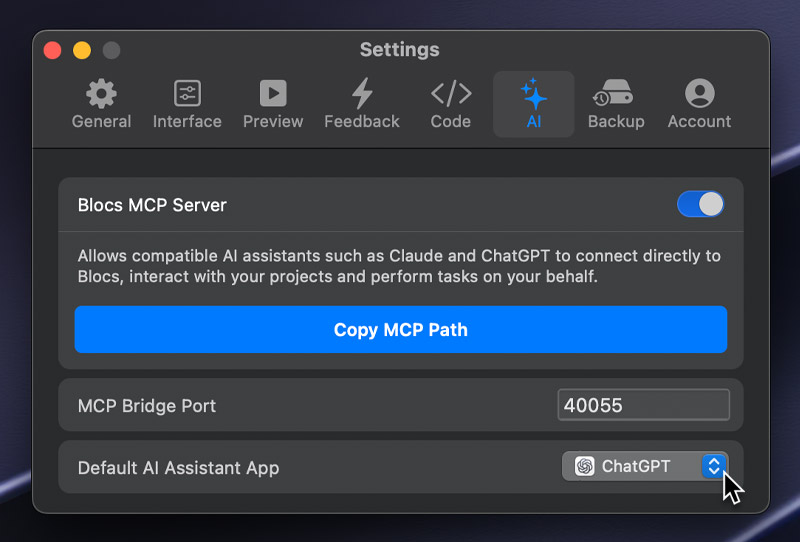
Once you’ve selected your preferred AI app, Blocs will automatically configure the necessary MCP settings to establish a connection between the two applications. This takes care of the technical setup for you, allowing you to start using your AI assistant with Blocs without the need for any manual configuration.
Blocs supports automatic MCP configuration for the following AI apps:
- Claude
- ChatGPT
- Cursor
- Bionic
Manual Setup
If Blocs doesn’t support automatic MCP setup for your preferred AI app, or if the automatic setup fails, you can connect manually to the Blocs MCP server by following your AI app’s instructions for adding an MCP server.
The Blocs MCP server path can be copied at any time using the Copy MCP Path button in the Blocs AI settings.

Ways to Use MCP
Here are a few examples of what you can accomplish with AI using the Blocs MCP server.
Launch Blocs, open my coffee website, duplicate it and translate the site into Spanish.
Create a bakery website with a homepage featuring a carousel, pricing sections and a footer. Use a brown and cream colour scheme.
Analyse the images in my Blocs project, understand what they show and use them to build a webpage with relevant text and content inspired by the images.
Add a code page to my site and create a shopfront inspired by Apple’s website. Add basic product filtering and shopping cart logic.
Create a custom class that applies an arrow-shaped clip-path and apply it to all buttons on the page.
Update all of my page descriptions to make them more SEO-friendly.
Update my site’s social cards to reflect our new company name.
Refresh the look of my website, use custom classes for all styling so I can easily tweak the design myself.
Disable MCP
If you prefer not to use an AI app alongside Blocs, you can disable the Blocs MCP server in the main Blocs Settings.