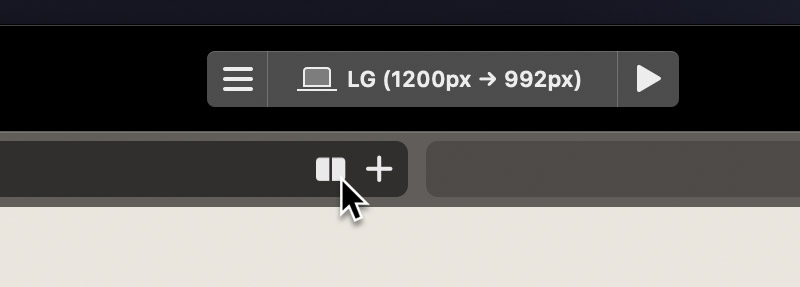
Blocs 7 introduces the ability to open multiple projects simultaneously. Each project has its own dedicated tab in the tab bar at the top of the design canvas, making it easy to switch between projects as you work.
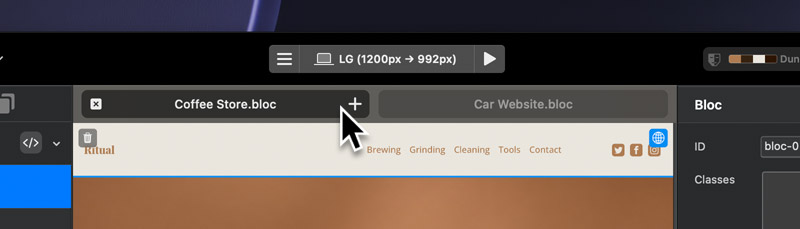
Tab Controls
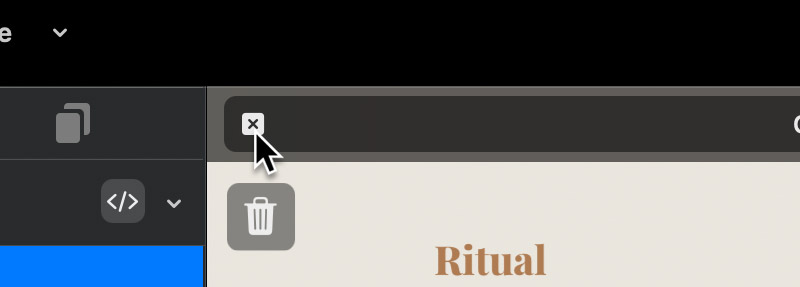
Each project tab has a close button on the left, allowing you to quickly close the associated project. Alternatively, right-clicking a tab provides the option to Close All Other Tabs, leaving only the selected project open.
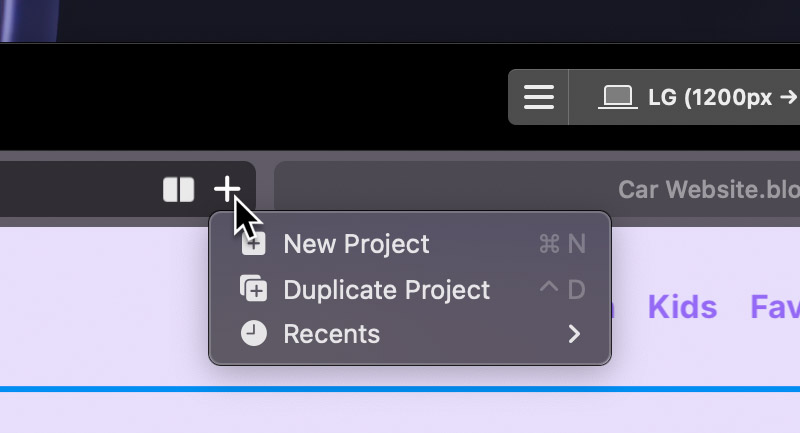
To the right of the project tabs, you’ll find a + button. Clicking it provides quick access to options for creating a new project, duplicating the current project or opening one of your recently used projects.
Project tabs can also be easily rearranged using drag and drop. Simply click and drag a tab to your preferred position in the tab bar, allowing you to organise your open projects in an order that best suits your workflow.
Multi View
Multiview allows you to view up to four Blocs projects side by side, making it easier to work across multiple projects simultaneously. In addition to copying and pasting, you can drag and drop elements such as text, buttons and images directly between projects, helping to streamline your workflow.
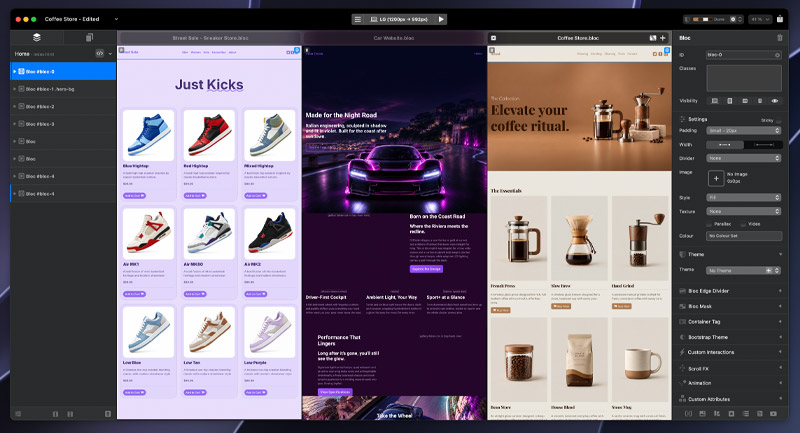
You can enable Multiview by clicking the Multiview button, located next to the + button on the right of the project tabs. Alternatively, use the keyboard shortcut ⌃+⇧+M to quickly toggle Multiview on or off.