
When you’re ready to export your website, simply click the Export button in the top-right corner of the main Blocs window to access all export options, including publishing directly to a web host.
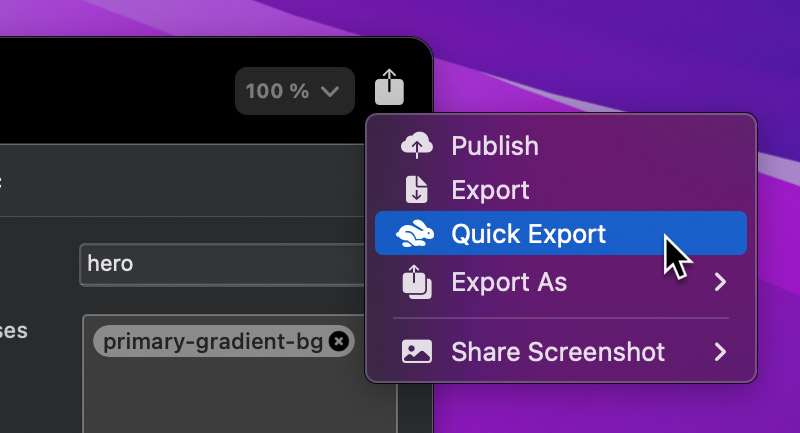
Publish
Blocs includes built-in publishing tools, allowing you to upload your website via FTP, SFTP, FTP with Implicit SSL, or FTP with TLS/SSL. For more details, see the dedicated guide on publishing your website.
Export
The Export option includes additional settings that allow you to customise how your website is generated. You can also access this option using the keyboard shortcut ⇧+⌘+E.
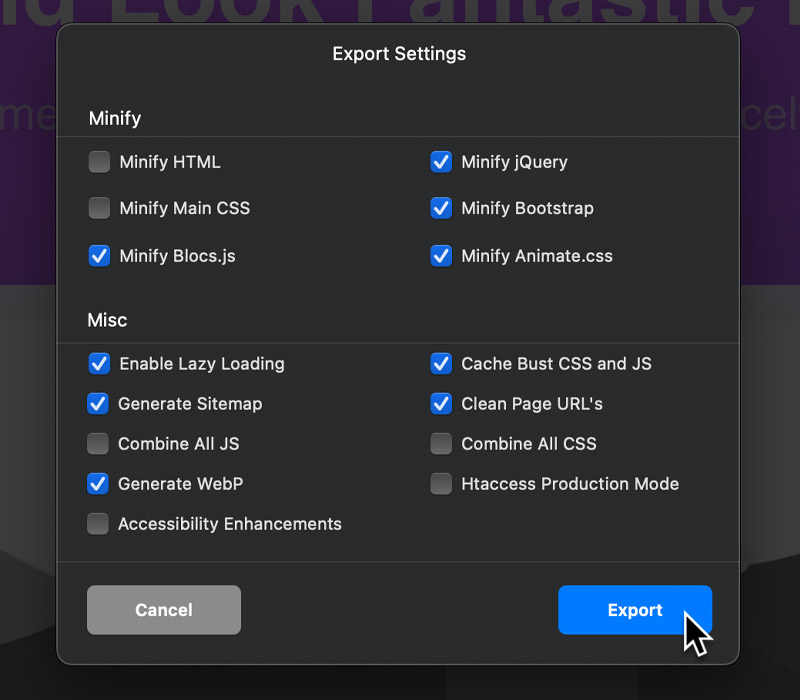
For a full breakdown of each export setting, refer to the Export Project Settings.
Quick Export
The Quick Export option uses your existing Export Project Settings, taking you straight to selecting an export location. This option can also be triggered using the keyboard shortcut ⌘+E.
Export As
With these additional options, you can export your site as a reusable template or as a WordPress theme when using Blocs Plus.
Export as Site Template
This option exports your website as a Site Template .bex file, allowing others to install it via the Extension Manager and use it as a starting point for new projects.
Export as Page Template
This option exports the currently selected page as a Page Template .bex file, which can be installed using the Extension Manager and reused in other Blocs projects.
Export as WordPress Theme
Blocs Plus users can export their website as a WordPress theme. For more details, visit the Blocs Academy to learn how to build WordPress themes.
Share Screenshot
With Share Screenshot, you can capture the active page as a full-size JPEG and easily save or share it via Email, Messages, or AirDrop. Learn more here.